The explorer
Run vlx (or vlx explore) to open the explorer. Give it a service to jump
straight in:
vlx                                       # start from the list of services
vlx hostname                              # a unique part of a socket name
vlx /run/systemd/io.systemd.Hostname      # a path
vlx unix:/run/systemd/io.systemd.Manager  # varlinkctl's address form
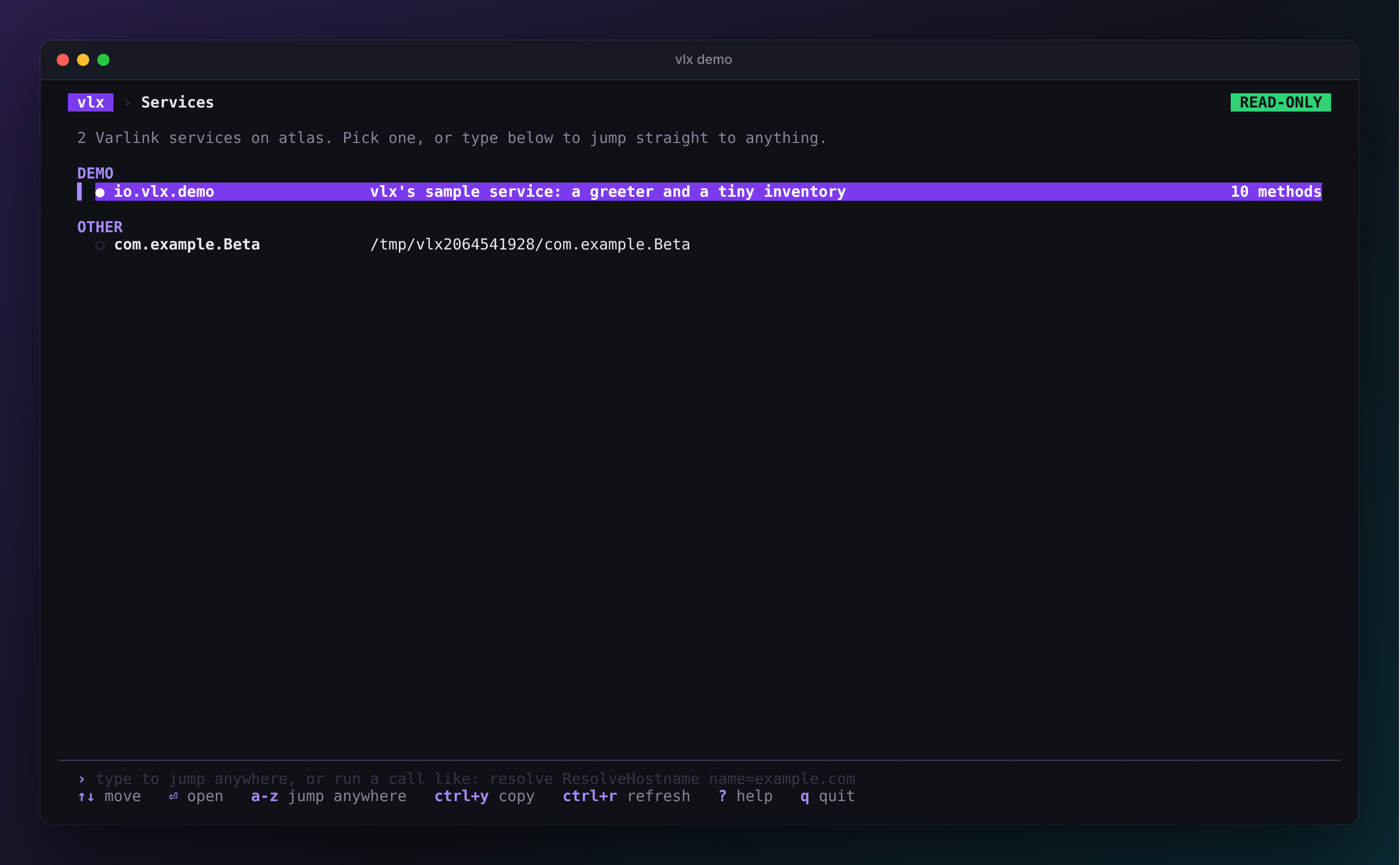
The explorer shows one page at a time — all services, one service, one method — and a command line along the bottom that is always there. Use the arrow keys and Enter to drill down, or just start typing to jump anywhere.
The header
The top line is a breadcrumb — vlx › Services › Resolve › ResolveHostname
— and two badges:
READ-ONLY(green) orWRITES ENABLED(amber) — the safety mode.ROOT(red) when vlx runs as root, as a reminder that calls run with full privileges.
Esc (or Left) always goes up one level.
Services
The home page lists every socket vlx found, grouped — System, Network, Users & login, Machines & images, Storage, Security, Devices, Your session — with a plain-language description of what each one is for. Your most recent calls sit at the top; Enter on one brings it back with the same parameters.
Preview
As the cursor rests on a service, vlx reads its description in the
background and shows how many methods it has. This uses only the read-only
introspection methods every Varlink service implements, and results are
cached. Prefer to connect only when you ask? Set preview: false in the
config or run vlx --no-preview.
A service
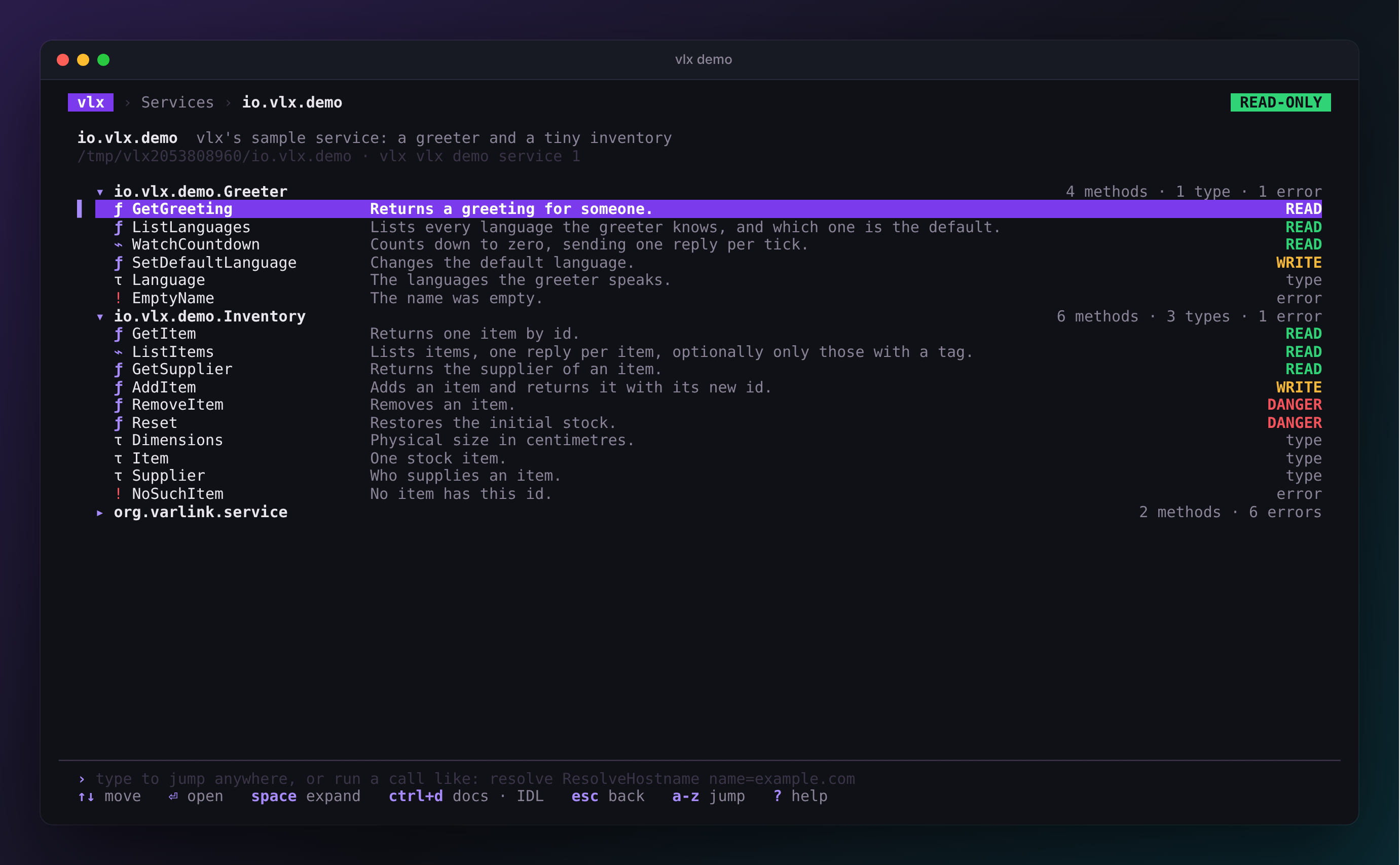
A service page lists its interfaces with their methods, types and errors,
each with the first line of its documentation and, for methods, its
safety class. The org.varlink.service and
io.systemd.service interfaces, which every service carries, start
collapsed.
Enter opens a method, type or error; Space expands or collapses an interface; Ctrl+D shows documentation and the raw IDL.
The command line
Start typing on any list page — or press /, : or Ctrl+K — and the command line shows what matches across every service, interface, method, type and error:
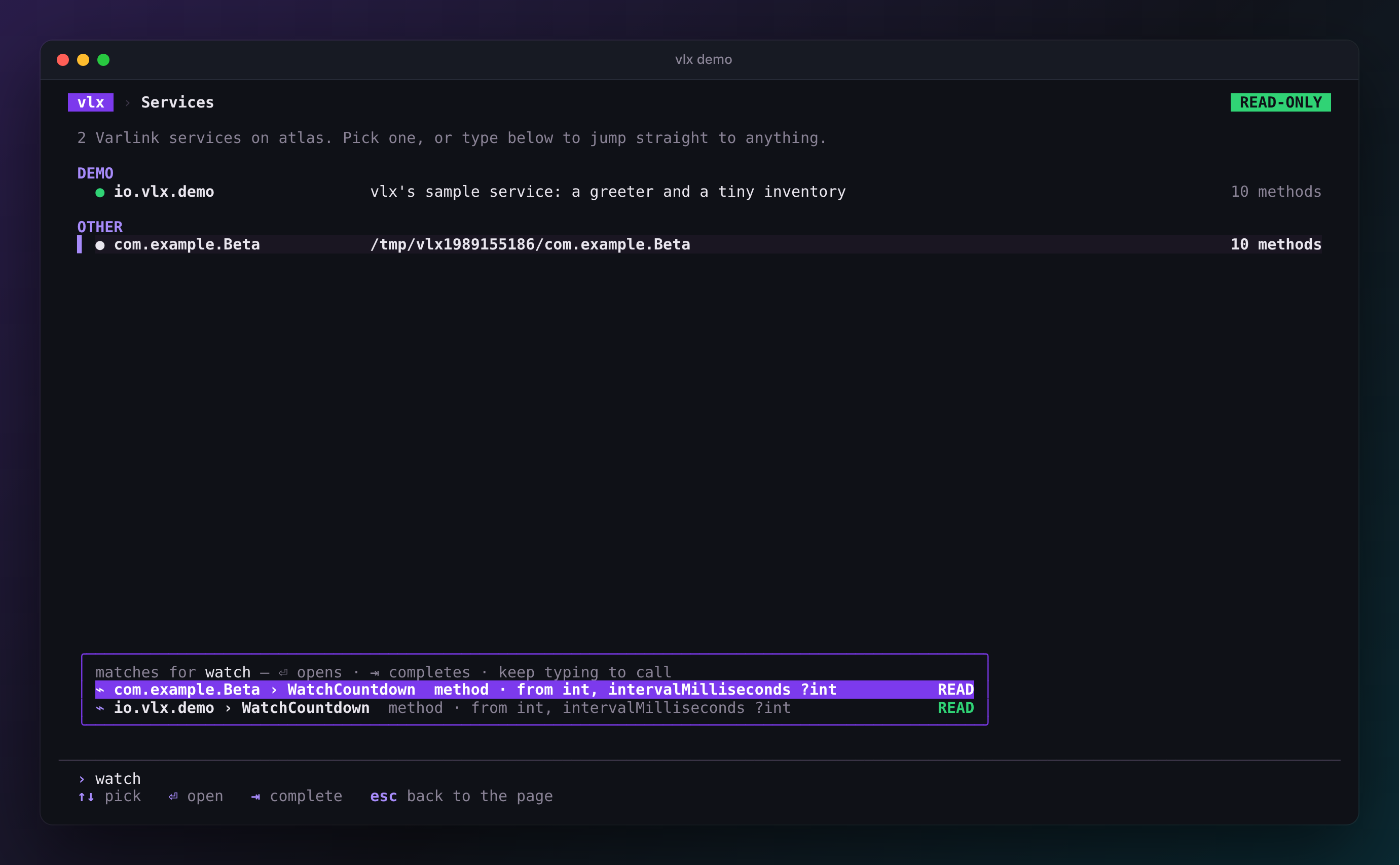
Type a few words in any order (resolve host, user record, unit list),
pick with Up / Down, and press Enter to go there, or Tab to
complete the line.
Keep typing and the line becomes a call:
demo GetGreeting name=Ada language=german
resolve ResolveHostname name=example.com
hostname Describe
- SERVICE is anything
vlx callaccepts: a unique part of a socket name, a socket name or a path. An interface's name works too —unit Listfindsio.systemd.Uniton the service manager — and so does a method name on its own when only one service has it. - NAME=VALUE sets a parameter. Quote values with spaces like a shell:
name='Ada Lovelace'. Strings and enum values are taken as typed; numbers, booleans, arrays and structs are JSON.
As soon as the line names a method, the popup lists its parameters. Enter opens the method page and, if you gave parameters (or the method needs none), sends the call. Up and Down on an empty match list bring back earlier calls, like a shell's history.
A method
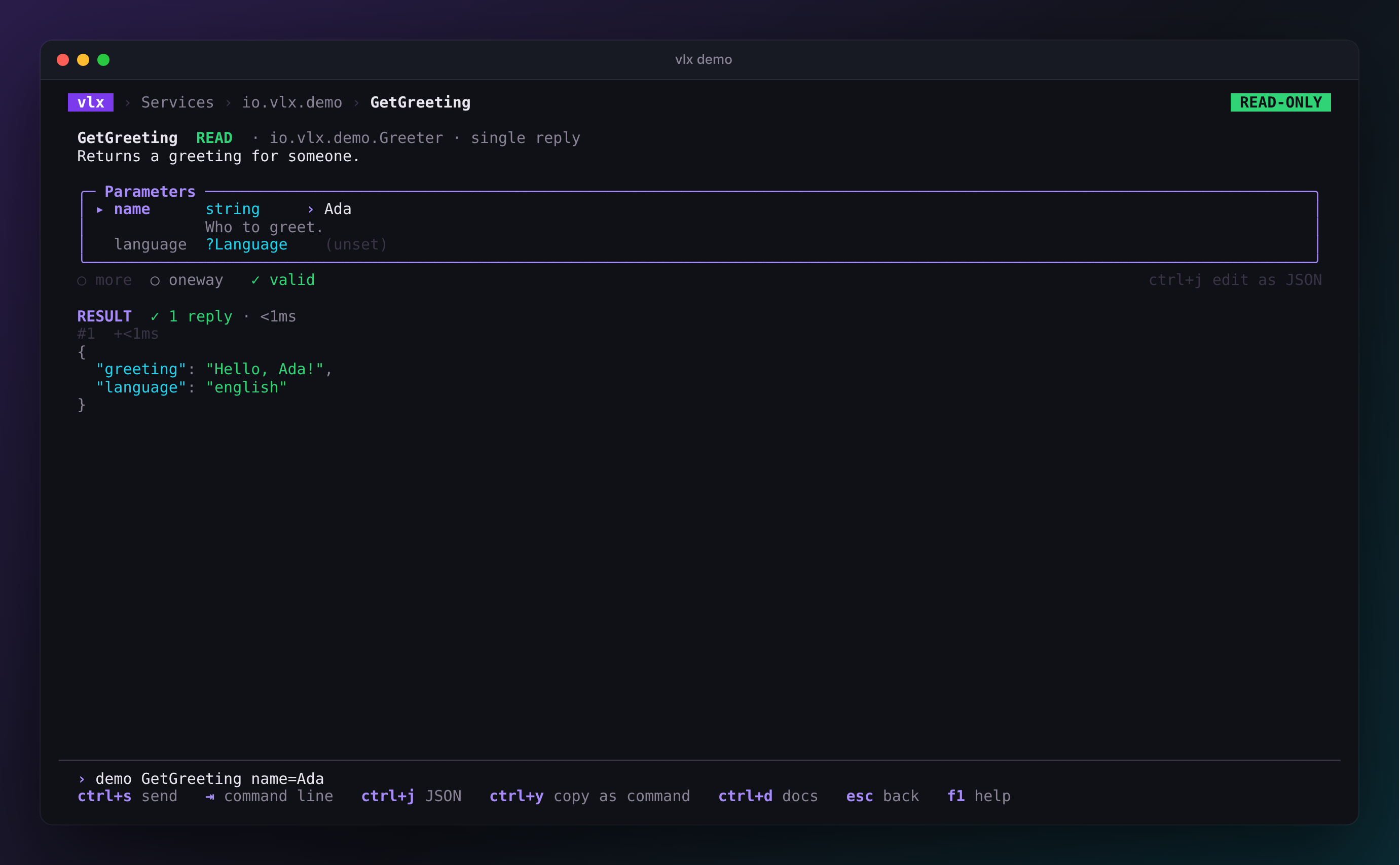
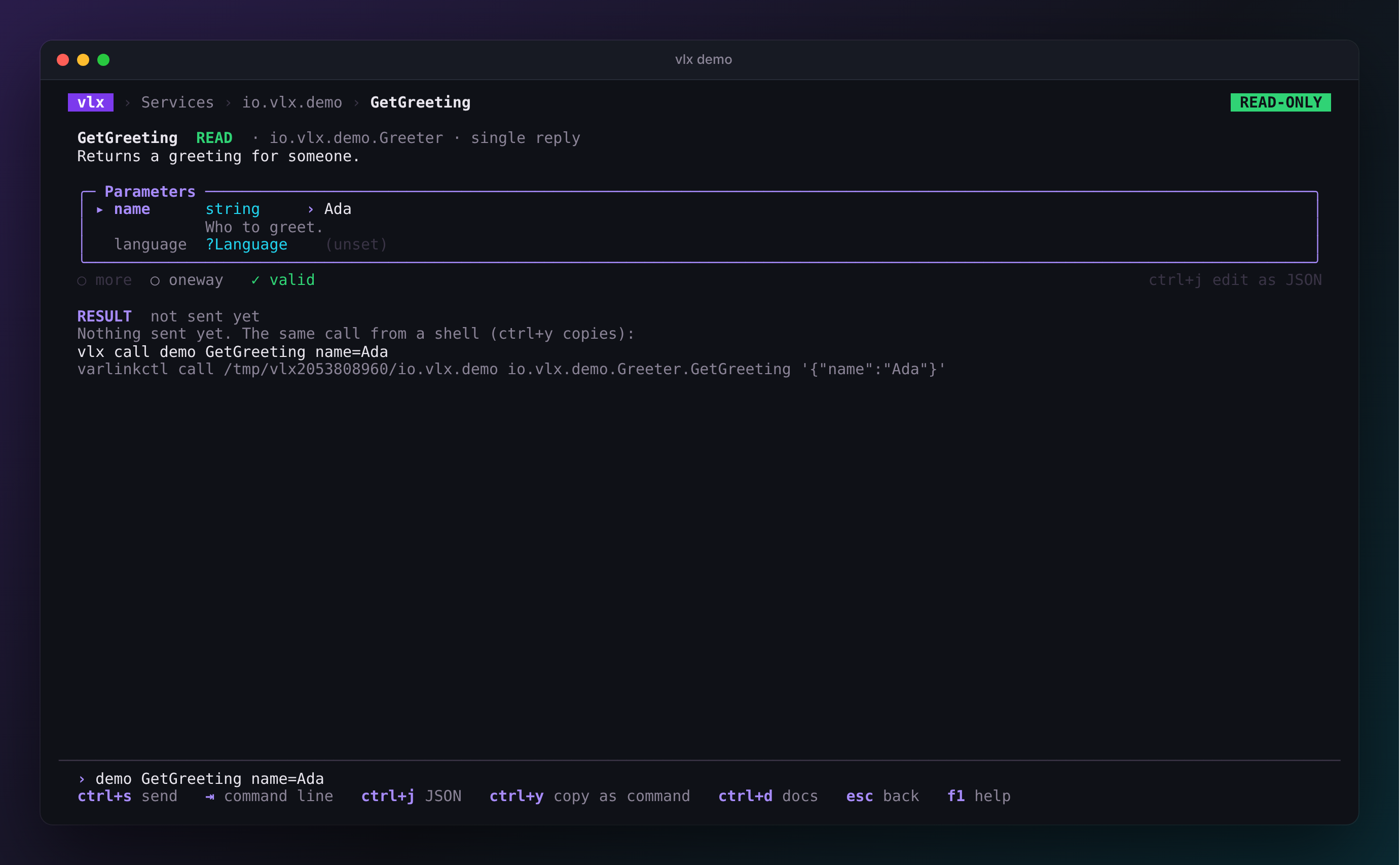
A method page has the method's documentation, a parameter form, and the result of the last call, followed by earlier calls of the same method.
The form and the command line are the same call. Edit a field and the command line updates; press Tab to move to the command line, edit it, and the form follows. Enter there sends; Ctrl+S sends from anywhere on the page.
| Type | How you edit it |
|---|---|
string |
type text |
int, float |
type a number |
bool, enums |
Left / Right or Space to choose, or type the first letters |
| structs, arrays, maps | a JSON value, pre-filled with a skeleton |
Move between fields with Up / Down. The current field shows its
documentation. Optional parameters (?T) are left out until you give
them a value. vlx checks every value against the IDL as you type and will
not send invalid parameters. Prefer JSON? Ctrl+J edits all the
parameters as one JSON object, and back.
Under the form are two toggles and whether the parameters are valid:
- more — ask for a stream of replies. On for methods that stream, forced on for methods that require it, unavailable for methods that cannot.
- oneway — send without waiting for a reply. A oneway call is always treated as at least a WRITE.
The result shows every reply as colourised JSON with its number and arrival time, the error (with its IDL documentation) if the call failed, and a hint when vlx knows what to do about it. Streams arrive live; Esc stops them.
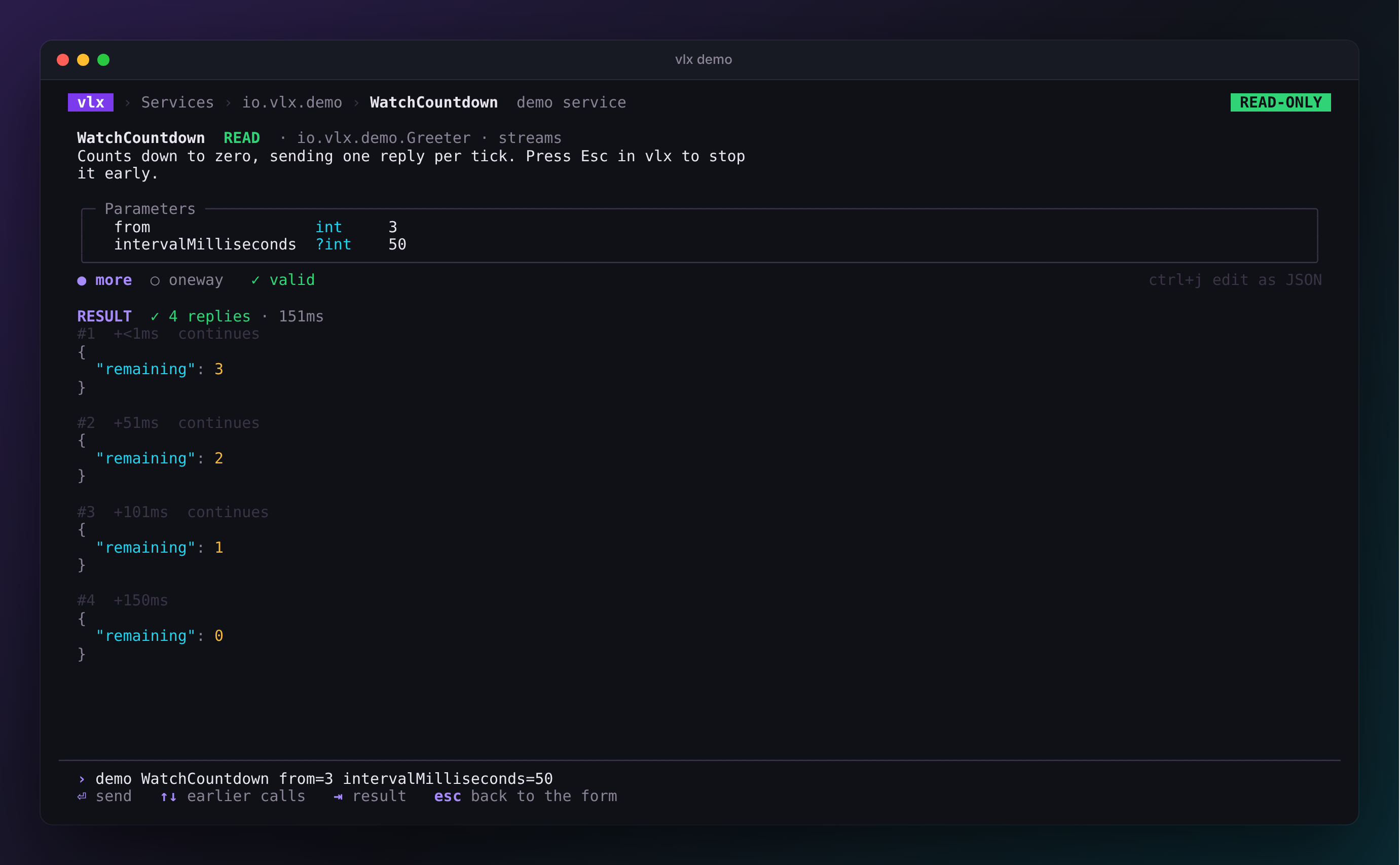
Tab cycles the form → the command line → the result. With the result
focused, Up / Down scroll, Y copies the replies as JSON and
Shift+R reveals redacted values. Ctrl+Y copies the call as vlx call
and varlinkctl call commands.
Each method keeps its parameters and last result until you quit, so you can wander off and come back.
Clipboard
vlx copies with the OSC 52 escape sequence, which most modern terminals
(and tmux with set -g set-clipboard on) support, including over SSH.
Symbols
vlx never relies on colour alone: every state also has a glyph or a word.
| Symbol | Meaning |
|---|---|
ƒ |
method with a single reply |
⌁ |
method that streams (supports or requires more) |
τ |
type |
! |
error |
● / ○ / ✗ |
service read / not read yet / failed |
⊘ |
you lack permission to connect to this socket |
| READ WRITE DANGER | the method's safety class |
Redaction
Values under keys that look secret — password, hashedPassword,
privileged, anything with token, secret or privateKey — are shown as
«redacted» so they do not end up in screenshots or screen shares. Press
Shift+R on the result to reveal them; configure the patterns with
redact.
All the keys are listed on the Keys page.